Free AI Rap Generator: What You Can Try Before Paying
Explore what you can prepare for free with AI RAP, how paid video generation works, and how to choose photos, topics and settings before spending credits.

Searching for a free AI rap generator usually means one of three things: writing a few lines, hearing those lines performed, or making a complete rap video. Those are different outputs, and a free preview of one does not necessarily include the others.
With AI RAP, you can explore the public scene illustrations, read the guides, and prepare your idea without buying credits. Creating a real video requires signing in and spending account credits. Viewing a scene preview does not give you a free generation allowance. This guide helps you use the preparation stage well, then decide whether a paid video fits your idea.
The cover is an original conceptual illustration of a creative workspace, not a generated customer video.
First, decide what you actually want to make
A text draft gives you words to revise or perform yourself. An audio generator produces something you can listen to. A photo-to-video workflow adds performers, a setting and movement. Before comparing anything described as free, identify which of those results you need.
AI RAP focuses on the third category: a short duet video made from two individual portraits or one photograph of two people together. You choose a stage and a topic to guide original English lyrics, vocals and music. It is not a standalone lyric editor, voice-cloning service or recording studio.
If you only need a birthday message to read aloud, start with a few written ideas. You may discover that a simple personal verse is enough. If seeing two people perform together is central to the gift, a photo rap video is the more relevant format.
What you can do before spending credits
The useful free stage is preparation. Browse the scene illustrations to compare the feeling of a warm booth, a lobby, a rooftop or a birthday setting. These show creative directions, not a promise that your finished faces, gestures or soundtrack will match them.
Read the first-video guide, check the photo requirements, and write a topic in a separate note. The creator can keep a draft in your browser, but keeping your wording elsewhere is sensible if you might switch devices or clear browser data.
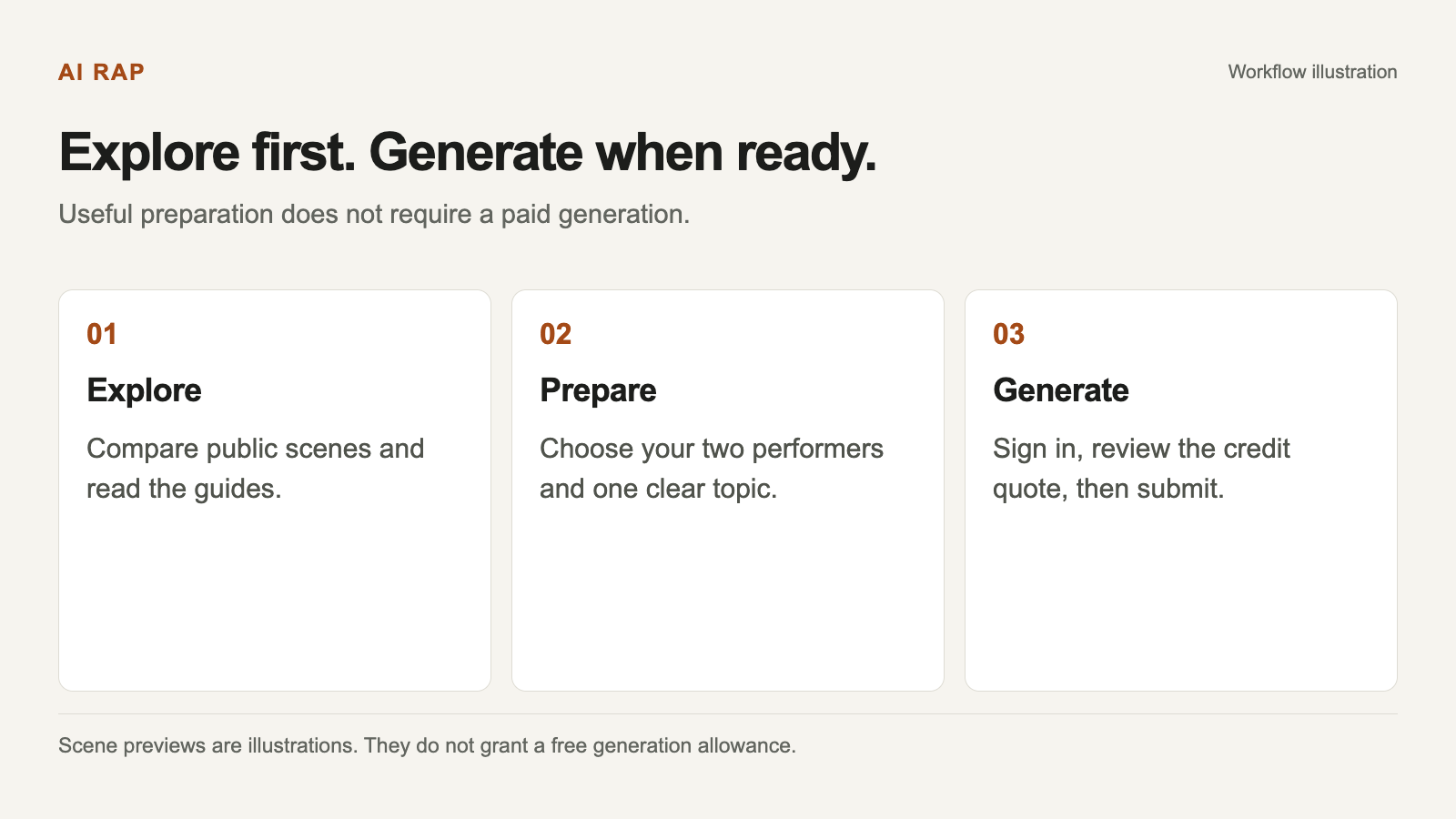
Select a diagram to view it at full size.
Preparation and generation are separate stages. This diagram explains the workflow; it does not show a finished result.
This preparation does not create a private finished video. It also does not reserve a price or guarantee that every model and setting will remain available when you submit.
Build a small creative brief
A useful brief answers three questions: who is in the video, what moment matters, and what tone should it have? Keep the answer focused enough that a stranger could understand it after one reading.
For example:
Maya and Leo celebrate ten years of friendship, late-night pizza and always showing up for each other.
That is more personal than “make an amazing rap.” It gives the model a relationship, a shared detail and a positive direction. You do not need to write a full song before trying a short video.
AI RAP's topic field allows up to 120 characters. Use it for the core idea rather than a long list of camera instructions or a complete verse. The words above are a topic example, not a line that the model is guaranteed to sing.
Choose photos before choosing expensive settings
Start with clear, unobstructed faces and permission from both people. Use two individual portraits, one person per slot, or choose the mode for one photo of both people together. Do not place a single person in the two-person photo mode and expect the second performer to be invented correctly.
Supported photo formats are JPG, PNG and WebP, within the limits shown in the creator. A sharp, well-lit source is more useful than a complicated image with tiny faces. Heavy filters, large sunglasses and crowded backgrounds make identity harder to interpret.
You can compare candidate photos without submitting a generation. Pick the pair in which both faces are easy to recognize, then keep the originals available. The photo guide explains the current size and framing requirements.
Check the quote, not a remembered price
Generation costs depend on the selected model, resolution, duration and creation mode. Look at Pricing and then review the exact credit quote in the creator before confirming. A preview price, an old screenshot or a number in someone else's tutorial is not the final quote for your task.
Changing a model can also change which durations and resolutions are compatible. Review the proposed settings together. If the quote changes before submission, confirm the new quote only after checking the revised cost.
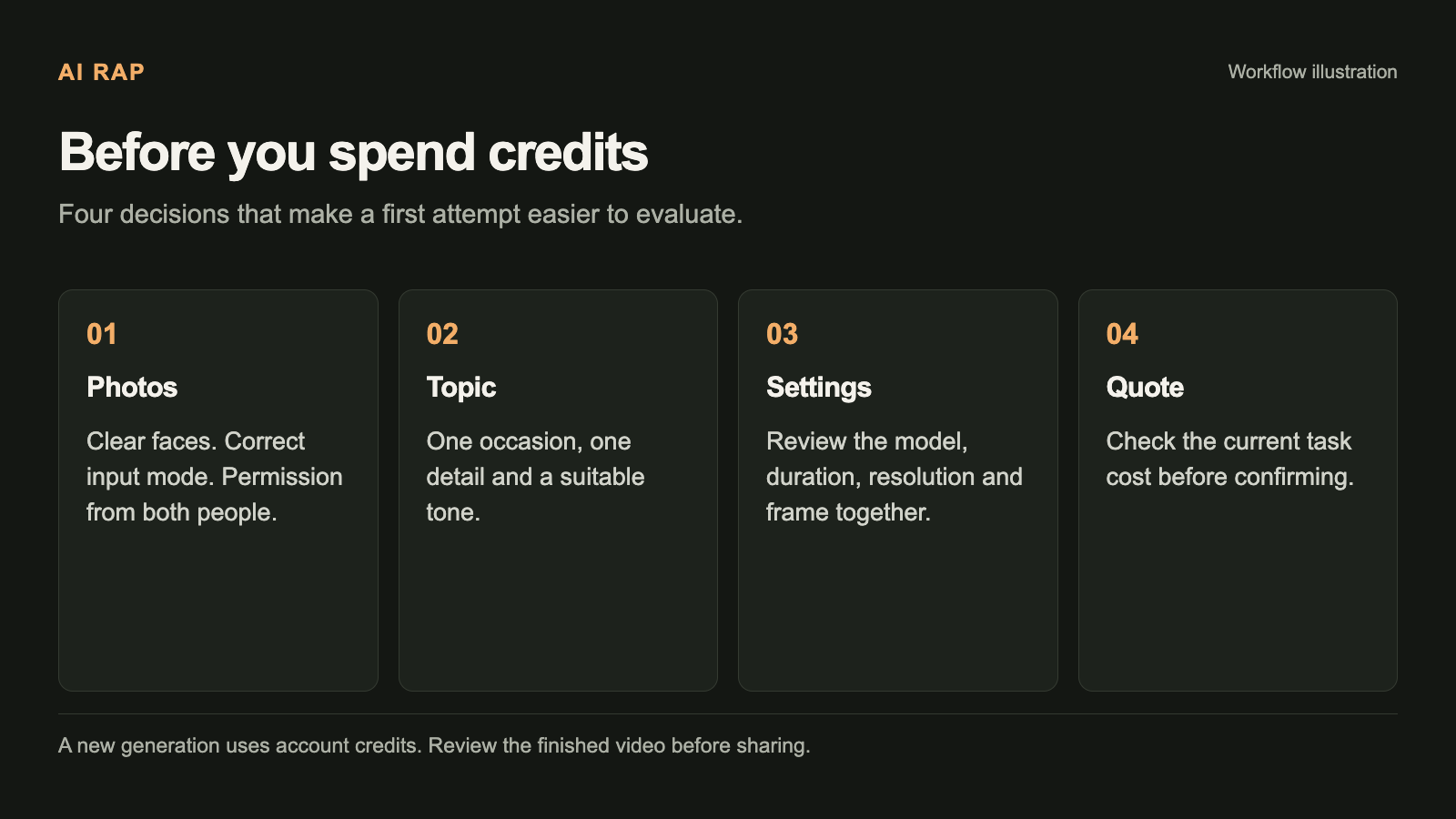
Use this checklist before confirming a real generation.
For a first attempt, choose the shortest available duration that can express your idea comfortably. That is a creative budgeting choice, not a guarantee that a shorter clip will produce a better result. Avoid changing several settings simply because the options are available.
Understand what happens after submission
A real task uses account credits and appears in My videos. Generation can continue in the background if you leave the page. A network interruption does not by itself mean the task failed, so check the existing task before creating another one.
Confirmed generation failures return the charged credits once. That is different from a cash refund for a payment. The credits and failed-tasks guide explains the distinction and where to check your balance.
When a video is ready, watch it and listen before downloading. Check the actual file specifications as well as the requested settings. Facial likeness, exact wording and lip movements can vary; a successful task status is not a substitute for reviewing the creative result.
Make the first attempt easy to evaluate
Choose one occasion and one emotional direction. “A warm birthday shout-out for a friend who loves cooking” is easier to judge than a brief asking for comedy, romance, a roast and a dramatic ending in the same short clip.
Write down what success would look like before submitting: both people are recognizable, the topic feels relevant, and the overall tone is appropriate for the recipient. This gives you a useful basis for deciding whether another attempt is worth the credits.
If you change the topic later, change one part at a time. You can learn more from a specific adjustment than from replacing the photos, stage, model and topic all at once.
Common questions about free use
Does watching a preview spend generation credits?
Public scene illustrations are for browsing. They are not a generation using your photos and do not create a free allowance.
Can I generate without an account?
Real generation requires signing in. See the without-signup guide for the parts you can prepare first.
Can I paste a complete song and have it performed exactly?
This workflow does not offer line-by-line lyric editing or song uploads. A short topic guides newly generated words, vocals and music.
What should I do next?
Prepare two suitable photos and one clear topic, then open the creator. Review the available settings and current quote when you are ready to make a real video.